EidosKast manual
From first launch to a published quiz video.
This guide explains the complete production path, what every important control does, and where to review work before it becomes a finished video.
Introduction
What EidosKast does
EidosKast is a Windows quiz-production studio. It combines planning, AI-assisted writing, editorial review, animated scene rendering, narration, thumbnail editing, and YouTube handoff without requiring a manual video-editing timeline.
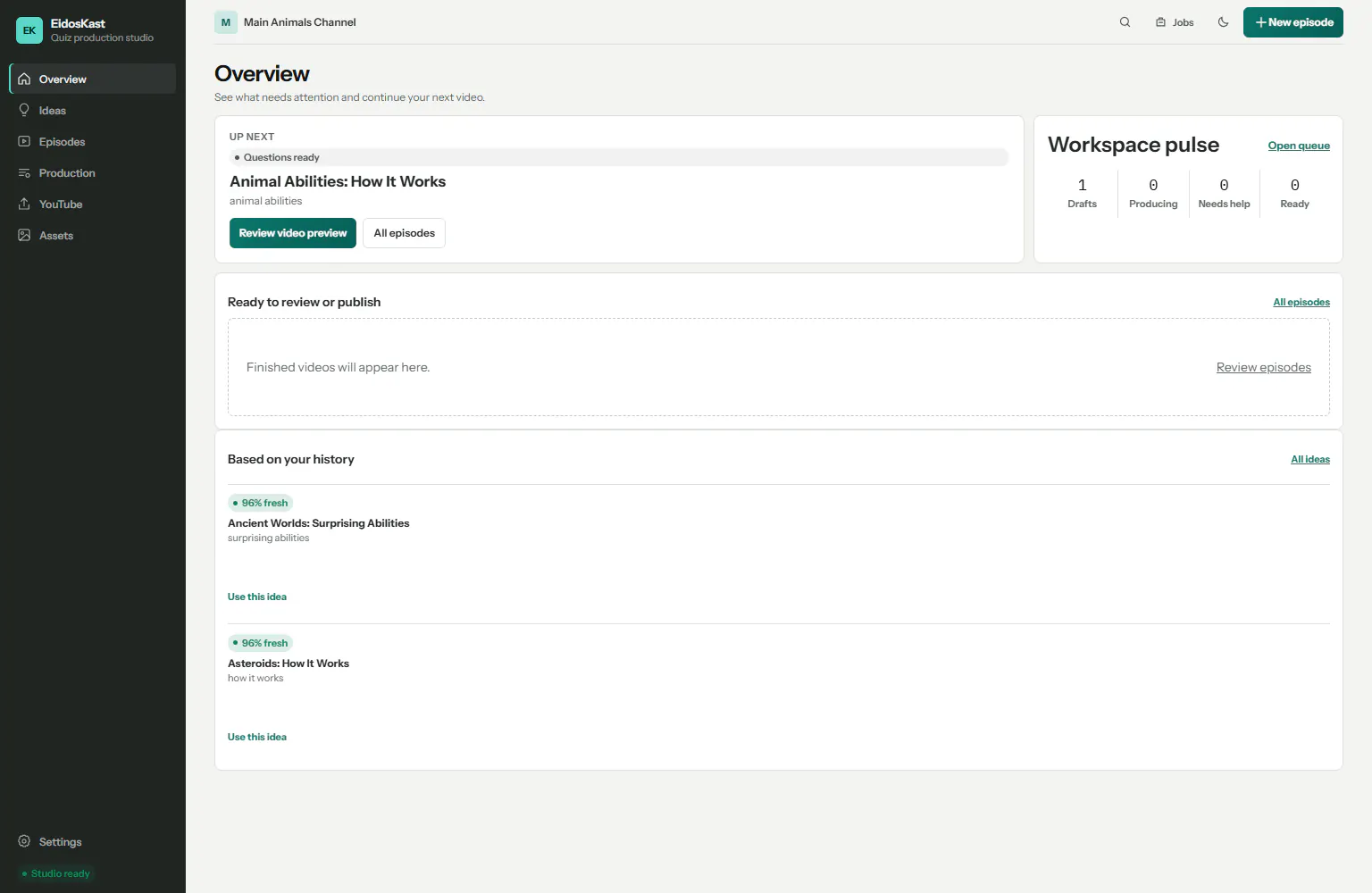
- Projects and outputs remain on your computer.
- AI-generated material is reviewable before rendering.
- Landscape and vertical formats use the same guided workflow.
- Production history helps reduce repeated questions, titles, and visual directions.
Install and launch
Start the desktop workspace
Extract the portable EidosKast package into a writable folder and launch EidosKast.exe. Keep engine.exe beside it: the desktop shell verifies and starts this local production engine.
- Do not move engine.exe away from EidosKast.exe.
- Allow the app through Windows security only when the publisher and file source are trusted.
- The first launch creates local configuration, cache, project, and date-grouped output folders.
- If startup remains on the loading screen, open Diagnostics and verify the local engine and FFmpeg checks.
License
Activate trial or paid access
Without an active entitlement, EidosKast opens in read-only mode so you can inspect the interface but cannot create or render projects.
- Open Settings → Access and license.
- Choose Start trial when the server reports that the device is eligible, or paste the paid EidosKast license issued by EidosStack.
- Select Save and test license. The status must change to Trial or Paid before production controls unlock.
- A valid trial remains active across restarts until its server-defined expiry; you do not request it again each launch.
- Trial renders include the EidosKast / EidosStack watermark. Paid renders do not.
Important field reference
- License key
- The product-scoped EidosKast key. It is stored masked on this computer.
- Status
- The entitlement returned by the EidosStack license server, including expiry and enabled services.
- Device activation
- Binds the allowed session to this workstation according to the product license.
AI setup
Choose the question-writing AI
The selected AI writes quiz questions and publishing metadata. Configure and test one provider before creating an episode.
- Open Settings → AI models and select OpenAI, DeepSeek, MiMo LLM, or Custom LLM.
- For Custom LLM, choose OpenAI-compatible or Anthropic-compatible, then enter the service URL and model identifier.
- Paste the API key, save, and run Test connection. A saved key alone is not a successful test.
- Use a model with enough context and reliable JSON output; EidosKast validates and retries malformed batches rather than accepting broken questions.
Important field reference
- Provider
- The service used for question and metadata generation.
- Model
- A known model from the list, or a custom model identifier.
- API key
- Your provider credential, encrypted or protected in local application storage.
- Service URL
- Only relevant for custom compatible endpoints; keep the provider default otherwise.
Narration
Set the quiz host voice
Narration settings are provider-aware. EidosKast translates the episode script into the controls supported by the selected voice service.
- Open Settings → Narration and choose EidosSpeech, ElevenLabs, MiniMax, or MiMo TTS.
- Select language, voice or voice ID when supported, and a child-friendly delivery style.
- Save the provider credentials, run Test connection, then Generate preview.
- Play the preview before production. A generated preview confirms that the returned audio is valid and playable.
- MiMo TTS exposes its supported voice behavior rather than language controls it does not provide.
Important field reference
- Provider and voice
- The narration service and voice identity used throughout the episode.
- Delivery style
- Pace, energy, pauses, and supported emotion controls optimized for a quiz host.
- Preview
- A short real provider request used to verify audio before a full render.
Output defaults
Set video profiles and sound defaults
Video profiles define the reusable technical format. Audio defaults select music, sound effects, ducking, and final loudness behavior.
- Use landscape 16:9 for standard YouTube videos or vertical 9:16 for Shorts and Reels.
- Choose the resolution, frame rate, and hardware encoder preference supported by the workstation.
- Install an audio pack once from Assets → Music and sounds.
- Set BGM below narration; ducking automatically reduces music while the host speaks.
- Use Diagnostics to confirm FFmpeg and the available Intel, AMD, NVIDIA, or CPU encoder path.
Ideas
Start from an AI suggestion or your own topic
Both choices lead to the same episode brief, but they prefill it differently.
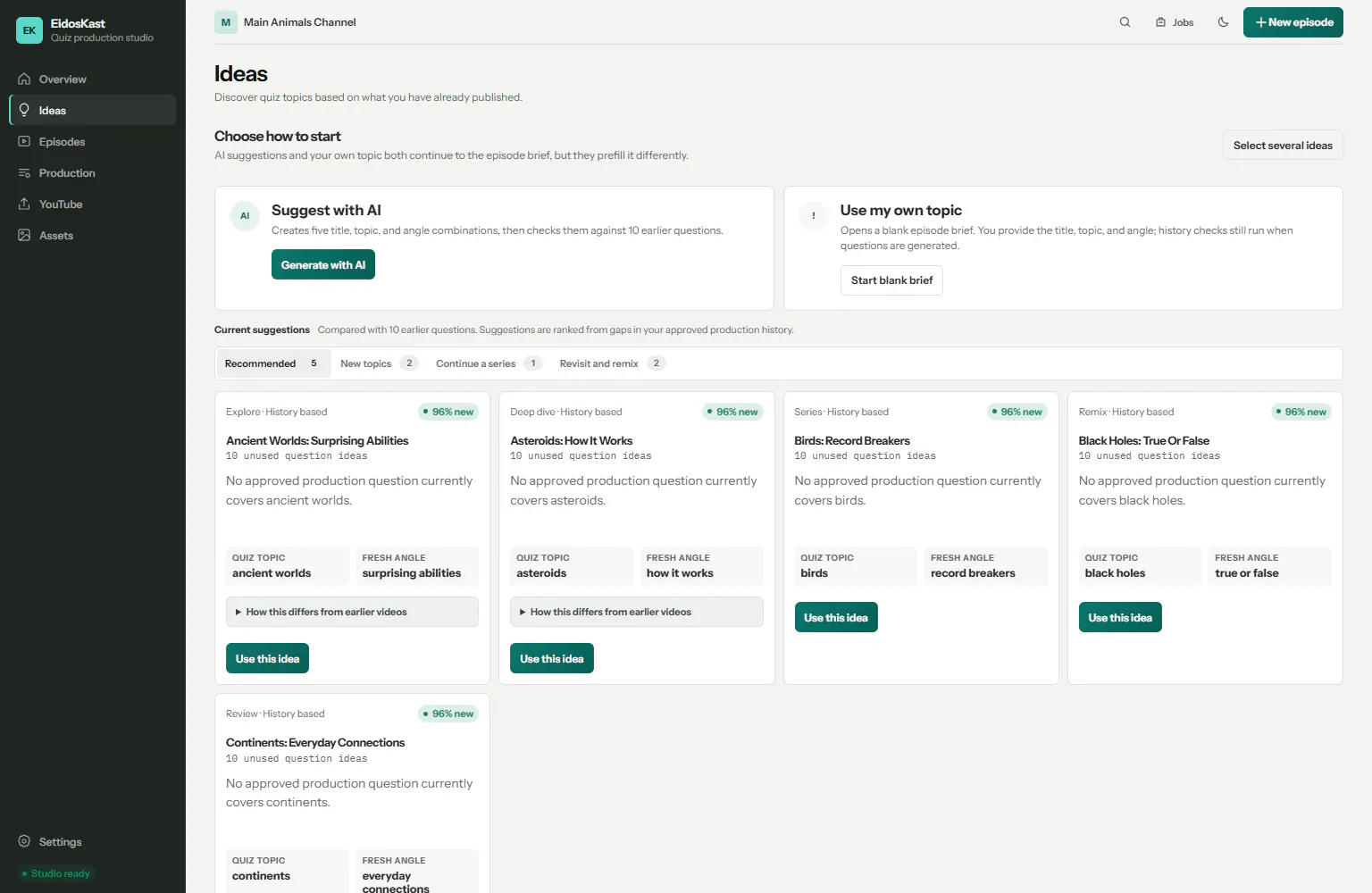
- Suggest with AI creates several title, topic, and angle combinations and compares them with approved production history.
- Use my own topic opens a blank brief; you supply the direction while duplicate and history checks still run later.
- New topics fill known content gaps. Continue a series extends an existing direction. Revisit and remix intentionally reuses a topic with a different angle.
- The freshness score is guidance, not a publishing guarantee. Review the proposed angle before using it.
New episode
Build the episode brief
Select New episode, choose a format, then describe exactly what the quiz should teach and how it should feel.
- Choose landscape or vertical first because it affects layout and text density.
- Use a descriptive working title and a focused topic, not a broad category alone.
- Pick the audience and difficulty together; the generated wording and explanations follow both.
- Choose a scene theme for intro, question, timer, reveal, explanation, transition, and outro scenes.
- Use custom instructions for factual boundaries or tone, not to repeat information already captured by another field.
Important field reference
- Title
- The working episode name; publishing review can create distinct YouTube title options later.
- Topic and angle
- The subject plus the specific perspective that keeps the quiz focused.
- Question count
- The final reviewed question target, separate from the extra candidates generated for QA.
- Audience and difficulty
- Controls vocabulary, distractors, explanation depth, and pacing.
- Language
- Controls question copy and must be compatible with the selected narration provider.
- Scene theme
- The complete visual system used across every video scene.
- Novelty
- Balances fresh subjects, series continuity, and intentional remixes against production memory.
Question review
Review the quiz before rendering
Generation runs in small validated batches, checks production history, and keeps the final list editable.
- Wait for the staged progress to finish: draft, history check, quality check, then save.
- Open every question to verify the answer, choices, explanation, age fit, and factual accuracy.
- Generate replacement changes one question. Replace all questions creates a new set from the same brief.
- Needs attention marks content that failed a deterministic rule or needs editorial judgment.
- Approve only the material you are prepared to publish; AI output is never a substitute for review.
Themes and assets
Apply a complete scene theme
A scene theme controls the visual language of the actual video. Thumbnail designs are separate and only affect the YouTube cover.
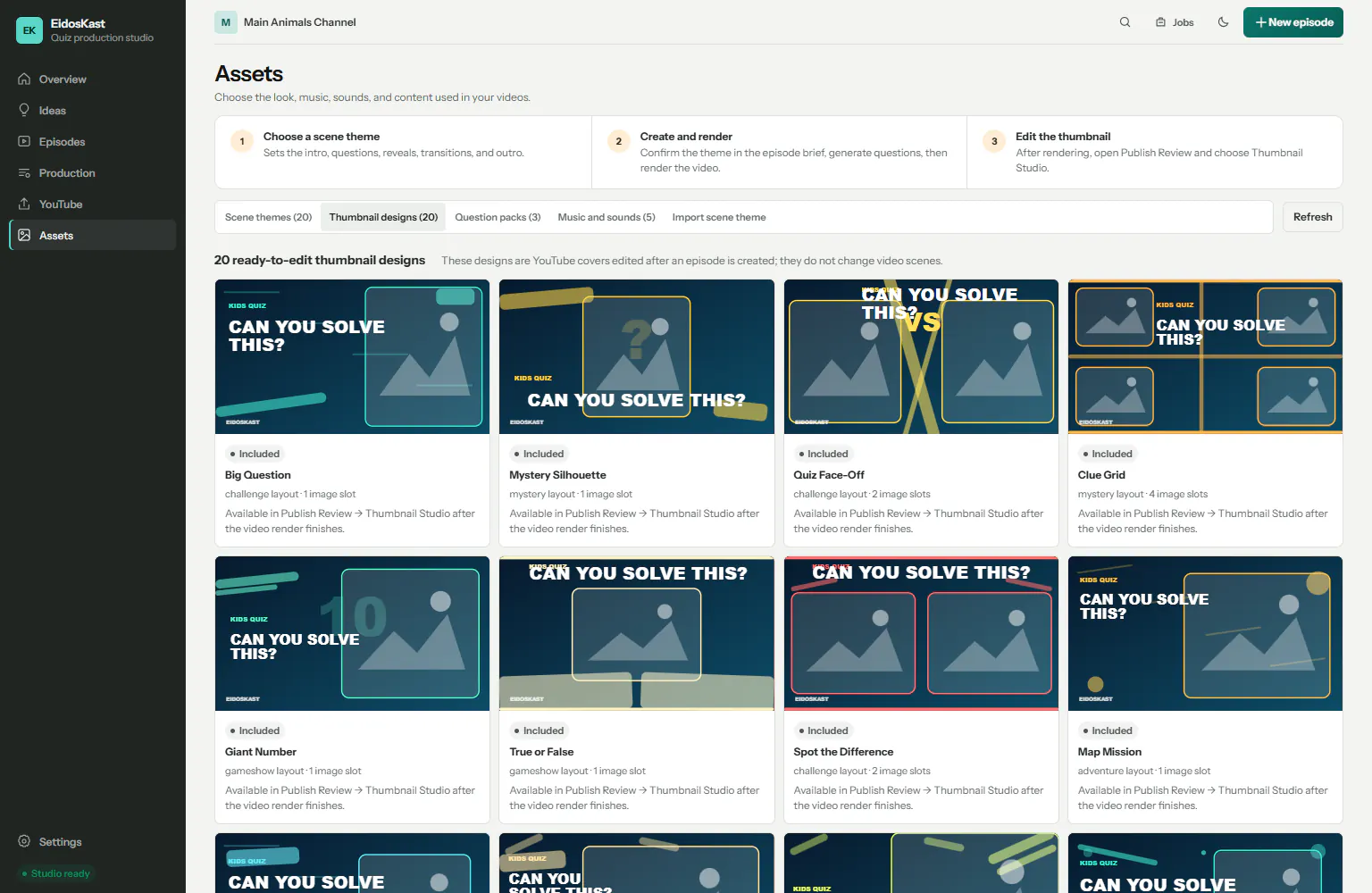
- Open Assets → Scene themes to preview the included designs.
- Use for a new episode opens a brief with that theme preselected.
- Long-text preview checks whether questions and answers fit before production.
- Question packs provide starting subject directions; audio packs provide reusable BGM and SFX.
- Imported themes must pass the local file and manifest checks before they can be selected.
Preview and render
Inspect the storyboard, then render locally
Storyboard preview catches layout and timing problems before EidosKast performs the expensive frame, audio, and FFmpeg work.
- Check the intro, each question, countdown, answer reveal, explanation, transitions, and outro.
- Return to question review or the episode brief when content or layout needs correction.
- Start production only after AI, narration, assets, license, storage, and FFmpeg checks pass.
- The job view reports scene, narration, encode, and assembly progress and allows cancellation.
- A compatible hardware encoder is preferred; EidosKast falls back to CPU when the driver or encoder is unavailable.
- Checkpoints allow supported interrupted work to resume instead of discarding the entire render.
Thumbnail Studio
Create a distinct publishing cover
After rendering, open Publish Review → Thumbnail Studio and choose one of the included designs as an editable starting point.
- Select a layout that matches the episode structure rather than changing only its color.
- Use provider-sourced or uploaded images, then reposition, scale, crop, and fit them inside the design slots.
- Edit the headline, supporting label, color, visibility, and layer order.
- Keep essential text and faces inside the safe area and verify legibility at small size.
- Export the approved image back to Publish Review; the source project remains editable.
Publish
Review metadata and hand off to YouTube
Publishing Review keeps the final video, title options, description, tags, thumbnail, audience declaration, privacy, and schedule together.
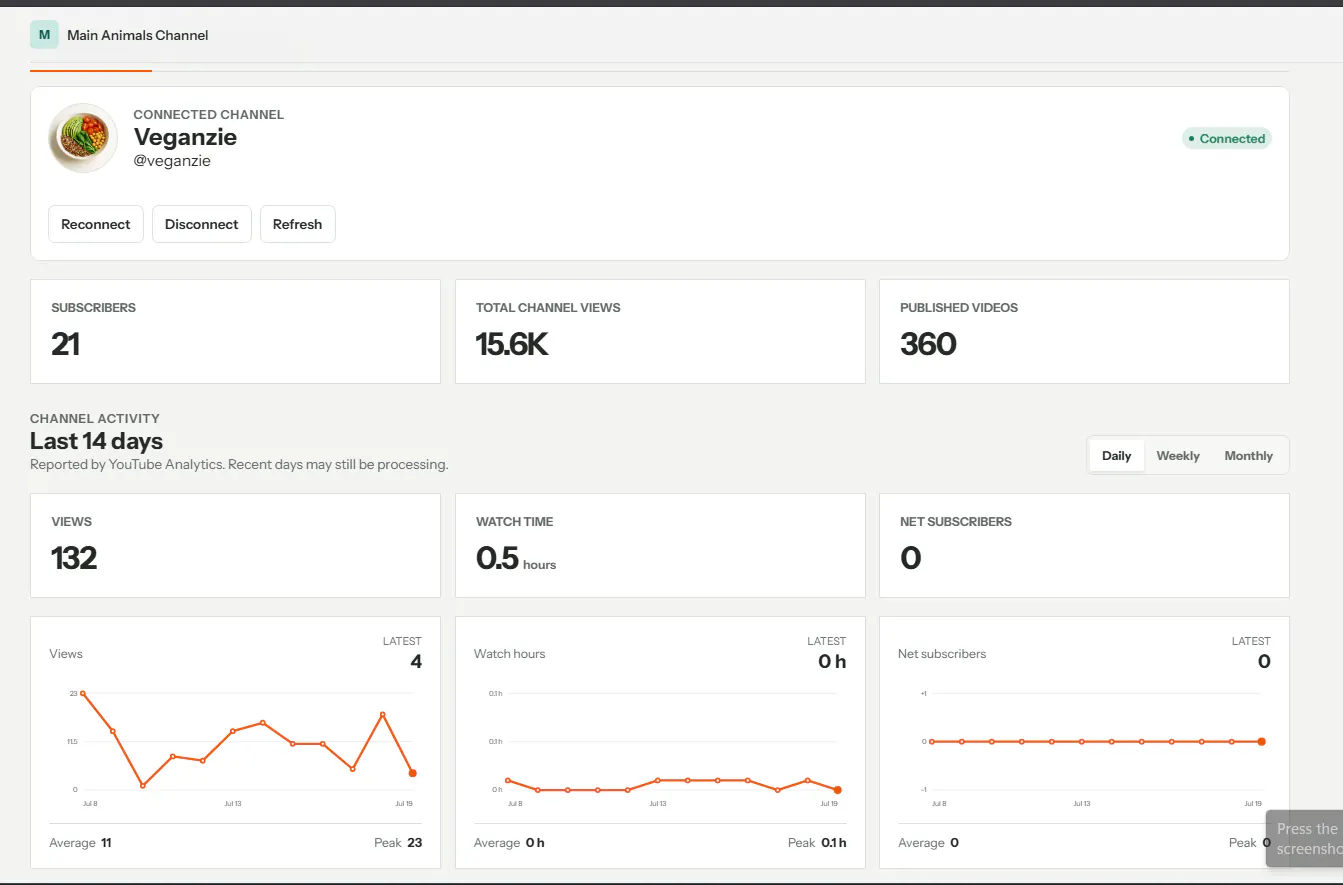
- Open YouTube → Connection guide and configure a Google Cloud OAuth web client with the exact callback shown by EidosKast.
- Enable YouTube Data API v3 and YouTube Analytics API, configure the consent screen, and add test users while the Google app is in Testing.
- Connect the intended channel and confirm its name and avatar before upload.
- In Publish Review, approve the title, description, tags, thumbnail, Made for Kids choice, privacy, and schedule.
- Direct uploads default to conservative settings and require explicit approval. You can also export the package and upload manually.
- Never share Google client secrets or provider keys in screenshots.
Files and backups
Know where your work lives
EidosKast keeps configuration, projects, cached assets, and generated output under its local EidosKast data structure. Finished output is grouped by generation date so large libraries remain manageable.
- Back up project manifests and source media, not only the final MP4.
- Do not edit a manifest while a render job is running.
- Clear cache from the application workflow rather than deleting unknown engine files.
- Before distributing a portable build, confirm it contains no local configuration, API keys, projects, or generated videos.
Troubleshooting
Resolve the most common blockers
Start with Settings → Diagnostics. It distinguishes local engine problems from provider, license, asset, and publishing failures.
- Stuck at startup: keep engine.exe beside the app, check its signature/hash, and verify that security software did not quarantine it.
- AI test fails: confirm provider, model, URL, key, and account quota, then save before testing.
- Narration preview fails: test the selected voice, verify the returned audio is non-empty, and generate a new preview after credential changes.
- Render is slow: verify the hardware encoder shown by Diagnostics; unsupported drivers fall back to CPU safely.
- YouTube callback fails: the authorized redirect URI must match exactly and the connecting Google account must be an allowed test user.
- License is read-only: refresh status, confirm device/session availability, and use the product-scoped EidosKast key.
FAQ
EidosKast questions
Does EidosKast upload project files to EidosStack?
No. Projects, source media, cache, and rendered output remain in the local EidosKast data folders unless you explicitly publish or use an external AI, narration, or YouTube provider.
Can I review AI-generated questions before rendering?
Yes. Question review is a required workflow stage where answers, choices, explanations, age fit, and factual accuracy can be edited or replaced before production.
What should I back up?
Back up project manifests and source media together with any final output you need. Do not rely on the rendered MP4 alone if you want to revise or reproduce an episode.